Making it yours
Change words and photos
Tap any words on your site and type over them. Change a photo in one press. Everything saves by itself.
- 1
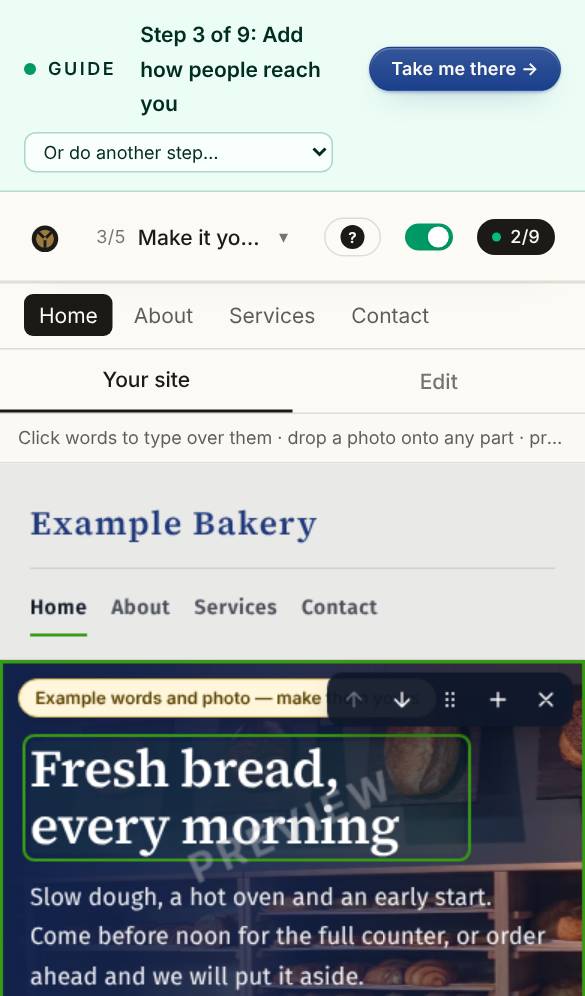
Tap the words you want to change
On Make it yours, tap any words on your site and type over them, right where they stand. Tap beside the words instead, and that part's editor opens — on its words first, ready to type.
- 2
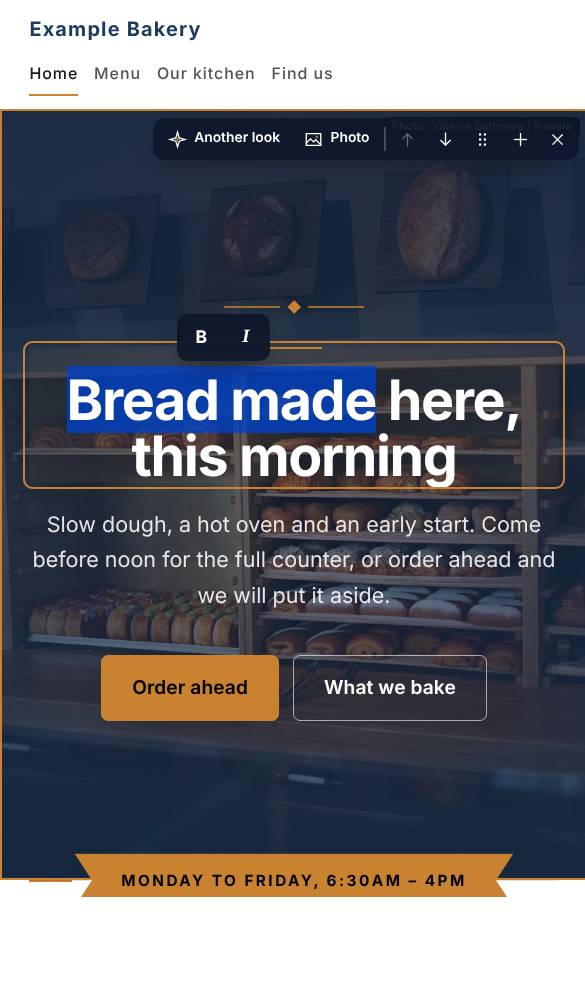
Bold or italic
Select a word or two, on the page or in the editor, and B and I appear just above them. Press one; press it again to take it off.
- 3
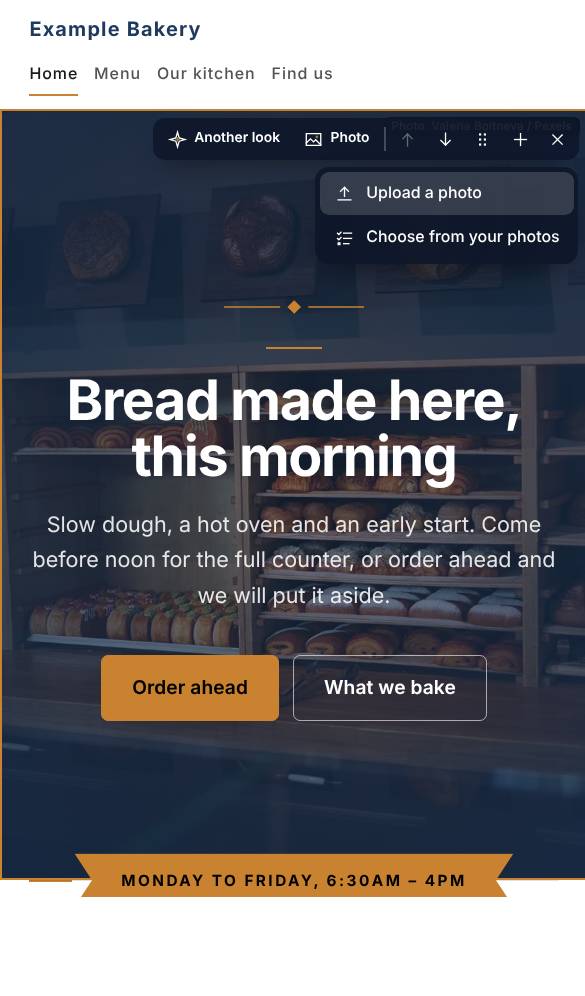
Change the photo
Choose a part, then press Photo on its bar — or press the photo itself. Upload one from your phone or computer, or choose from your own photos and our free ones for your trade.
- 4
Colour over the photo
Some designs lay your site's colour over a photo. Under Colour over the photo, choose Off to show it in its own colours — for this part, or for every photo at once.
- 5
It saves by itself
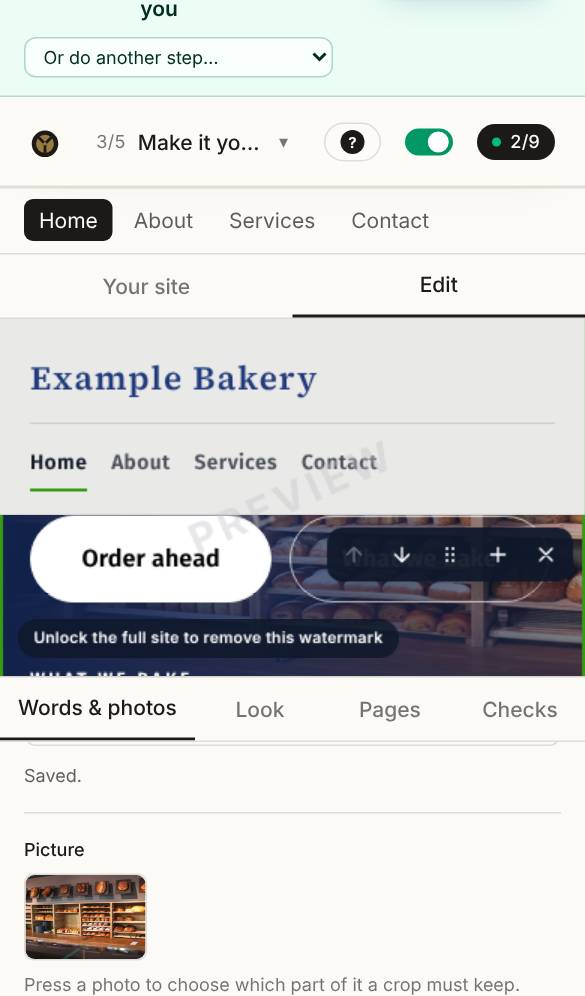
There is nothing to press: what you type saves a moment after you stop, and your site shows it straight away. Undo is at the top of the page.
Questions about this
Where do the photos come from?
Your site starts with photos chosen for your kind of business, free to use. Replace any of them with your own — your own photos always look best. Press Photo on a part to upload one, or to choose from yours and our free ones.
Can I change the look later?
Any time before you buy, and your words and photos come with you. After buying, reopen the site for editing and change anything: the first three reopenings are free.
Can I have my site in two languages?
Yes. Any language can be translated automatically in the builder with writing credits (8 a language). The translation is done by machine, not checked by a person, so read it over — or have someone who speaks the language read it — before you publish.