Making it yours
Move a part, or add one
Change the order of a page, or add a new part exactly where you want it. Everything settles into place and stays lined up, on a phone as on a computer.
- 1
Choose a part
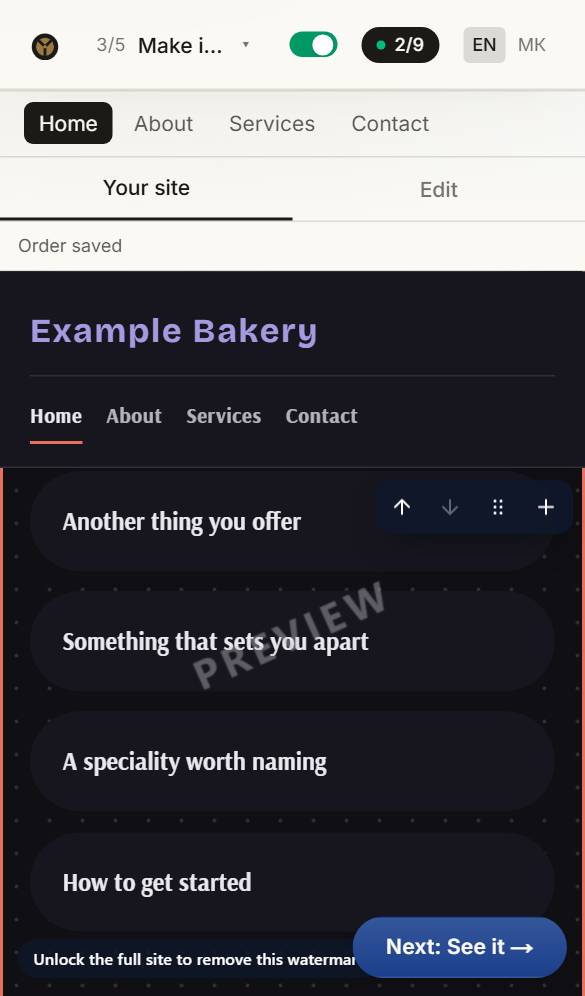
Tap a part of your page — beside its words rather than on them. Its bar appears at the corner: Another look and Photo, then the arrows, the handle, + and ×.

- 2
Move it
Use the arrows to move it up or down, or hold the handle and drag it between two others. On a phone, tap the part twice, then drag. It drops into place, lined up with the rest.
- 3
Add a part
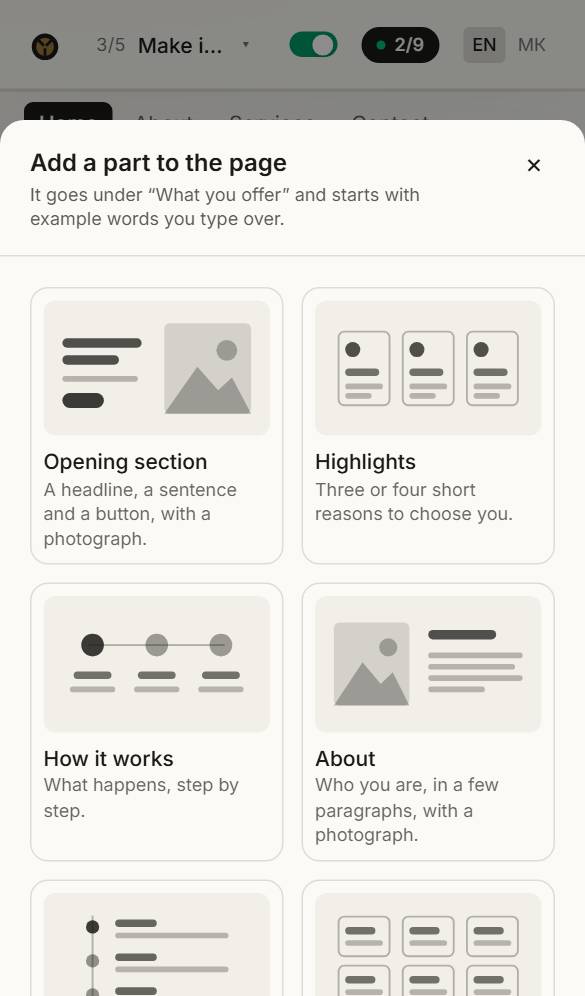
Press + on the bar, or + Add a part under Pages. Small drawings show what each part is; the ones that suit this page come first, and a part you took off earlier comes back with your words.
- 4
Put it in your words
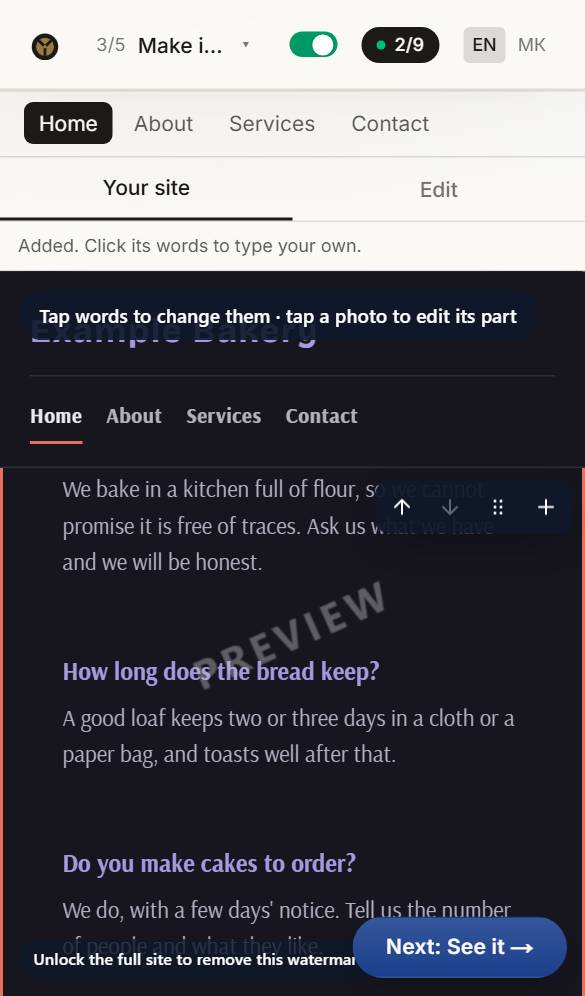
The new part arrives where you chose, with example words. Tap them and type your own.
Questions about this
Where do the photos come from?
Your site starts with photos chosen for your kind of business, free to use. Replace any of them with your own — your own photos always look best. Press Photo on a part to upload one, or to choose from yours and our free ones.
Can I change the look later?
Any time before you buy, and your words and photos come with you. After buying, reopen the site for editing and change anything: the first three reopenings are free.
Can I have my site in two languages?
Yes. Any language can be translated automatically in the builder with writing credits (8 a language). The translation is done by machine, not checked by a person, so read it over — or have someone who speaks the language read it — before you publish.